Digital Banking FAQ
How do I download my transaction history for future import into a third-party financial software application, such as Intuit® Quicken® or QuickBooks®?
Complete the following steps to download transactions from Online Banking:
- Log in to Online Banking and select the account from which you want to download your transaction history.
- Enter the start and end dates for the time period you’re interested in.
- Under Incoming or Outgoing, select All, Incoming, or Outgoing to indicate which type of transactions you would like to export.
- Enter the minimum and maximum dollar amounts you would like to be included, if applicable. If you leave these fields blank, all dollar amounts will be included.
- Enter the range of check numbers you would like to be included, if applicable. If you leave these fields blank, all checks will be included.
- Click Apply. If at any time you make a mistake or would like to start over, you can click Clear filters and begin again.
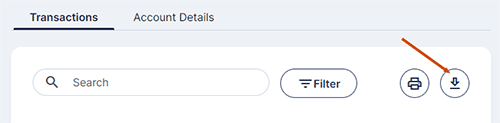
- Review the results that are displayed. If you are content with these results, click
the Download button to the right of the print icon near the top of your screen and select the desired format from the drop-down list.
- The file will download and become available for upload into your preferred third-party financial software.